Tutorial · Loom · Video Download
How to Download Loom Videos as MP4, With the Audio
Two tested methods to save any Loom recording offline: a manual DevTools plus ffmpeg route for one-off saves, and the Vidora Chrome extension for one click. Plus the reason so many Loom downloads come out silent, and how to avoid it.
Quick answer
To download a Loom video with sound: open the share page, press F12, go to the Network tab, filter by "m3u8", press play, copy the playlist-multibitrate.m3u8 URL from luna.loom.com, then run ffmpeg -i "URL" -c copy loom.mp4. Do not copy the .mp4 on cdn.loom.com: it is a muted preview. Or install Vidora, open the share page and click Download; it finds the playlist and writes the MP4 locally, no account, no proxy.
Loom is the default for async video in remote teams: a quick screen recording, a walkthrough, a client update. You record once, share a link, done. The problem starts when you need that video outside Loom: a client lost access, a teammate is leaving and their recordings go with the seat, or you want the clip inside your own editing timeline. The Download button is a paid feature shown only to the owner, and it is absent from every viewer-facing share page.
This guide covers how to download Loom videos in 2026 with two methods we test against the current Loom player: the manual DevTools path, and Vidora, our Chrome extension whose Loom support runs entirely in your browser, without any proxy or third-party server. Both produce a normal MP4 with audio, which is the part most other guides get wrong.
1. Why the Download button is missing
Loom ties downloading to plan tier and to ownership. On the free plan the Download entry is generally absent from the video menu; on Business and Enterprise it exists for the owner and can be switched off for the whole workspace by an admin. Viewers never get it: a share link at loom.com/share/{id} is meant to be watched in the Loom player, full stop.
None of this is a technical protection. Loom does not use Widevine, FairPlay or any other DRM. The player simply streams the recording like any HLS video, and whatever your browser can play, it can also save. The two methods below do exactly that, at the transport level, without touching Loom's servers in any way the player does not already.
2. Where the real video lives, and why so many downloads come out silent
This is the detail that separates a working download from a broken one. A Loom share page is server-rendered with a large JSON blob inside <script id="__NEXT_DATA__">, and that blob references two video files:
- The recording itself: an HLS master playlist named
playlist-multibitrate.m3u8onluna.loom.com. It lists several bitrates, and the video and audio tracks are separate renditions, Apple-style. The URL carries a signed query string (Policy,Signature,Key-Pair-Id) that expires. - A preview: a short MP4 under
cdn.loom.com/sessions/thumbnails/, a few seconds long, 0.5 to 1 MB, with no audio track. Loom uses it for Twitter and Facebook social cards.
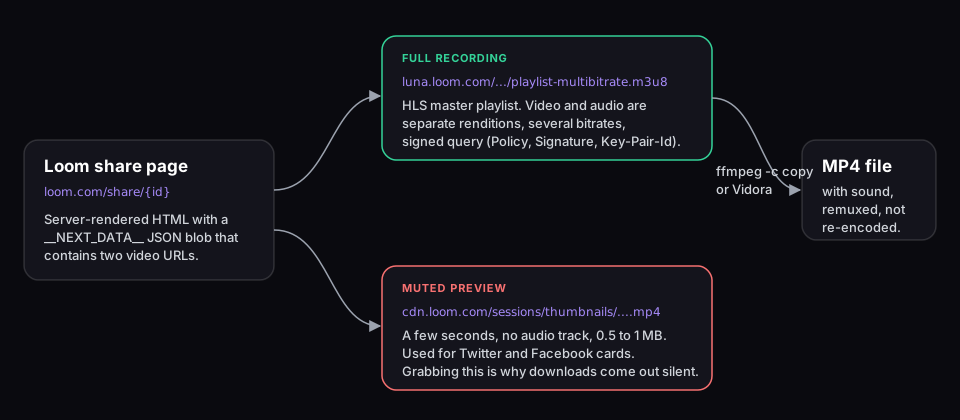
Most "Loom downloader" tools and many tutorials grab the first .mp4 they find. The result is a silent clip of a few seconds, which is the number one complaint we see about Loom downloads. We hit the same trap while building Vidora's Loom support: the resolver now prefers the .m3u8 playlist whenever it is present and rejects anything under a thumbnails or preview path. If your downloaded Loom video has no sound, that is what happened to you. When the silent file did not come from Loom, the diagnostic guide for downloaded videos with no sound covers the other causes: separate audio renditions, TS audio codecs and sources that were mute to begin with.
If HLS playlists are new to you, our beginner guide to M3U8 and HLS streaming explains master playlists, renditions and segments in plain language. The short version: an M3U8 is a text file pointing at video chunks, and turning it into an MP4 is a copy operation, not a conversion.
3. Method 1: DevTools plus ffmpeg (manual, one-off downloads)
Works in Chrome, Edge, Brave, Vivaldi and Firefox. Needs no extension and no Loom account, only ffmpeg, the free command-line tool available on Windows, macOS and Linux. Budget three to five minutes per video, and act quickly once you have the URL because the signature expires.
If the Network tab is unfamiliar, the step-by-step guide to finding any stream's M3U8 URL walks through it with screenshots. The Loom-specific part is knowing which request to pick.
Step-by-step: capture the Loom playlist and save it as MP4
- Open the share page and DevTools. Go to
loom.com/share/{id}, press F12 (Cmd + Opt + I on Mac), open the Network tab and typem3u8in the filter box. - Press play. Within a second or two a request named
playlist-multibitrate.m3u8appears, hosted onluna.loom.com. That is the recording. If you also see.mp4requests oncdn.loom.comunder/sessions/thumbnails/, ignore them: that is the muted preview. - Copy the playlist URL. Right-click the request, Copy > Copy URL. Keep the whole query string; the
Policy,SignatureandKey-Pair-Idparameters are the access token. - Remux with ffmpeg. In a terminal:
ffmpeg reads the master playlist, selects the highest-resolution video stream and the audio stream, downloads the segments and writes an MP4.ffmpeg -i "PASTED_URL" -c copy loom-video.mp4-c copymeans no re-encoding: the file keeps Loom's original quality and the job runs at download speed, with no encoding pass.
Why the playlist URL works without logging in
Once Loom's server has decided you may view the page (public link, or you entered the password, or your session belongs to the workspace), it puts a signed playlist URL in the HTML. The signature is the authorization: any client that presents the URL before expiry gets the segments, which is how the player works and how ffmpeg works. This is the same model as pre-signed S3 or CloudFront URLs, and it is the reason the method needs no cookies and no account.
Want a general-purpose version of this workflow for other sites? The M3U8 to MP4 conversion guide covers the same ffmpeg remux, plus what to do when a playlist is AES-128 encrypted or when the audio is missing from the master.
4. Method 2: Vidora (one click, no DevTools)
Vidora is a Chrome extension with a dedicated Loom resolver. You open a share page, click the toolbar icon, and the popup lists the recording with a Download button. No Network tab, no copy-paste. The resolver captures the signed playlist URL when the share page loads; if you left the tab open long enough for the signature to expire, reload the tab before downloading. The extension is free during launch.
How the Loom resolver works, step by step
When a tab lands on loom.com/share/{id}, the extension fetches that page's HTML from your own browser session, scans it for the playlist-multibitrate.m3u8 URL, and deliberately discards any MP4 under a thumbnails or preview path. It then downloads the HLS segments, the best video rendition up to 1080p by default plus the audio rendition, and remuxes them into a single MP4 using the same copy operation ffmpeg performs. Nothing is re-encoded. When the playlist offers several resolutions, the popup shows a quality picker.
Everything runs on your machine: no external proxy, no API key, no scraping server, no third party that ever sees your share URL. That matters when the recording is an internal meeting, a client call or a demo of unreleased features. Your URL never leaves the browser. If you want the product-page view of this, the Vidora Loom downloader page lists what it does and does not do in one screen.
Step-by-step with Vidora
- Install Vidora from the Chrome Web Store. It runs on Chrome, Edge, Brave and other Chromium browsers. No account, no email.
- Open the Loom share page at
loom.com/share/{id}. You do not need to press play; the resolver runs when the page loads. - Click the Vidora icon in the toolbar. The popup shows the recording's title and, when several exist, a resolution choice.
- Click Download. The MP4 lands in your Downloads folder (or the subfolder you set in Vidora's options, available since version 1.0.59), with audio, at the original bitrate.
For several recordings, open each share page in its own tab and start the download from each popup. Downloads run independently of the tab: you can move on while they finish.
Vidora vs generic video downloaders and paste-a-link sites
Generic "video detector" extensions watch network traffic and surface whatever looks like a video. On a Loom page that produces two candidates, and the one that shows up first is usually the preview MP4, which is how people end up with a silent five-second file. Extensions that do handle HLS correctly then need to merge the separate audio rendition, and many skip that step. The comparison with Video DownloadHelper goes through these cases one by one.
Paste-a-link sites are the other common route, and Cap.so is the one people try first. They fetch the share page from their server, which is fine for a public link and impossible for anything behind a password or a workspace login, since your session cookies are not on their machine. Our Vidora vs Cap.so comparison lays out which situations a web service covers and which ones need an extension running inside your own session.
5. Edge cases: password-protected, workspace-only and embedded Loom videos
Password-protected Loom videos
The share page shows a password prompt before rendering any video metadata. Enter the password as a normal viewer. Once the player is on screen, the playlist URL is in the page and the DevTools method works exactly as described. Vidora is best-effort here, and honestly unlikely to help in the current build: its resolver fetches the share page HTML without your session cookies on the first attempt, so a password gate usually leaves the popup empty even after you unlock the page. Public share pages are verified end to end in our test suite; password-protected pages are not. Use DevTools for these.
Workspace-only (team-restricted) videos
These load only for a Loom account that belongs to the creator's workspace. If you see "Sign in to view" or "only available to workspace members", no tool can help; authentication is not something a downloader can or should bypass. If you are a member and the video plays in your browser, the DevTools method works, because the signed playlist URL is requested by the player either way. Vidora attempts it on the same best-effort basis as password-protected pages (its first fetch of the share page carries no cookies); if the popup stays empty after a reload, use DevTools.
Embedded Loom videos on third-party pages
Docs sites, course platforms and wikis embed Loom through an iframe pointing at loom.com/embed/{id}. Vidora's resolver targets share pages, so replace /embed/ with /share/ in the URL, open that address in a new tab and proceed. The ID is identical. For the DevTools method the embed page works too: the player inside the iframe requests the same playlist-multibitrate.m3u8, which shows up in the parent page's Network tab.
If the Loom is one lesson in a course you are archiving, the guide on saving online courses for offline access covers the platform side: Teachable, Kajabi, Thinkific and the other hosts that wrap Loom or Vimeo players.
6. Legal and ethical considerations
Downloading video from the internet sits in a nuanced legal space. Here is a factual, neutral breakdown specific to Loom.
Your own recordings
Downloading your own Loom recordings is unconditionally fine. Loom's terms confirm you retain the rights to what you record. The Download button being hidden on some plans is a commercial UI decision, not a legal restriction on your own content.
Someone else's recording: the three questions
- Do you have legitimate access? If the share page requires a password or workspace membership and you have it, you are authorized to view the content. Saving a private copy of something you are allowed to watch is generally covered by fair use or private-copy doctrines in the US, EU and UK.
- Are you redistributing it? Re-uploading, publishing or sharing someone else's recording without permission is a copyright issue and often a confidentiality one. Downloaders, Vidora included, are for personal archiving.
- Is there DRM? Loom uses none. The stream is plain HLS over signed URLs. Neither ffmpeg nor Vidora circumvents encryption, and Vidora does not bypass DRM on any platform.
If the recording is an internal meeting, a client call or anything covered by an employment or client agreement, the question is whether you may keep that data, not which tool you use. The same framework applies to other hosts; the Vimeo download guide applies it to Vimeo's privacy settings.
7. Frequently asked questions
How do you download videos from Loom for free?
Two free routes. Manual: open the share page, open DevTools, filter the Network tab by m3u8, press play, copy the playlist-multibitrate.m3u8 URL and run ffmpeg -i "URL" -c copy video.mp4. Automatic: install the Vidora Chrome extension, open the share page and click Download. Both produce an MP4 with audio and neither requires a Loom paid plan.
Can I download a video I made on Loom?
Yes. On paid plans Loom shows a Download entry in the video's menu for the owner. If your plan hides it, or the recording is older and the button is gone, the two methods in this guide work on your own share page exactly as on anyone else's. You own your recordings under Loom's terms.
Why can't I download videos from Loom?
Three usual reasons. The Download button is a paid-plan feature shown only to the owner, so viewers of a share link never see it. Workspace admins can disable downloads for the whole team. And generic downloader tools grab the wrong file, the muted preview MP4, instead of the HLS playlist that carries the real video and audio.
How do I export a video from Loom?
As the owner on a paid plan: open the video, click the three-dot menu, choose Download and pick the resolution. Without that button, export means saving the stream yourself: capture the HLS playlist in DevTools and remux it with ffmpeg, or use Vidora, which does the same in one click and saves a standard MP4.
Why does my downloaded Loom video have no sound?
You downloaded the preview. Loom share pages reference two files: a short muted MP4 on cdn.loom.com used for social cards, and the real recording as an HLS playlist on luna.loom.com where video and audio are separate renditions. A tool that grabs the first .mp4 it sees saves a few silent seconds. Use the m3u8 playlist and a remuxer (ffmpeg or Vidora) to get the audio.
Does Loom notify the owner when someone downloads a video?
Loom does not send a download notification. Opening the share page can register a view in the owner's analytics, as with any viewer. DevTools adds no request of its own. Vidora fetches the share page HTML once and then the video segments, the same kind of requests the player makes, all from your browser; nothing goes to Vidora's servers.
What quality does the downloaded Loom MP4 have?
Whatever Loom encoded, up to the recorded resolution. The playlist is multi-bitrate: ffmpeg takes the highest rendition by default, Vidora picks the best rendition up to 1080p by default and shows a quality picker when several exist. Neither re-encodes, so the bitrate Loom serves is the bitrate you keep.
Why does the copied Loom URL stop working after a few minutes?
The playlist URL carries a signed CloudFront-style token (Policy, Signature, Key-Pair-Id) with a short expiry. After it expires the CDN answers 403. Run ffmpeg right after copying. Vidora captures the URL when the share page loads, so download soon after opening the page, or reload the tab first if it has been sitting open for a while.
About the author
Romain Gouraud is the founder of RGC Digital LLC and the engineer behind Vidora, a privacy-first video downloader Chrome extension for Vimeo, Wistia, Bunny.net, Loom, HLS streams and MP4. The Loom details in this guide come from building and maintaining the extension's Loom resolver, including the muted-preview trap it had to work around.
Related reading
- How to find the M3U8 URL of any video stream (DevTools deep-dive)
- How to convert M3U8 to MP4 with ffmpeg and without re-encoding
- How to download Zoom recordings, host or not
- How to download Wistia videos
- How to save online courses for offline access
- Vidora vs Cap.so for Loom downloads
- All Vidora alternatives: full overview